
Securing CouchDB with Keycloak behind Nginx reverse proxy
Single Sign-On for CouchDB with Keycloak as the identity provider and Nginx as a reverse proxy — user management moved out of the database and into a proper IAM.


CouchDB is a capable document database, but its built-in authentication is often not enough for projects that already rely on a centralised identity provider. This article walks through securing a CouchDB instance with Single Sign-On, using Keycloak as the identity provider and Nginx as a reverse proxy — a setup that removes user management from the database entirely and delegates it to a dedicated, production-grade IAM solution.
Introduction
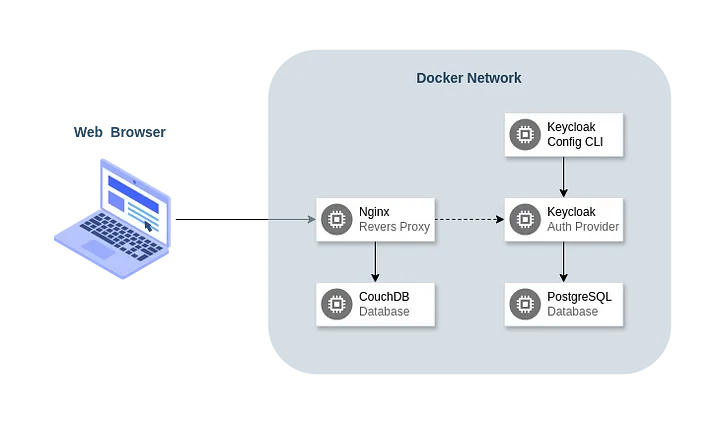
To simulate a production environment, this setup uses Docker and Bitnami containers, as they are quick and easy to get running. The architecture consists of:
- Keycloak — an open-source identity and access management solution with user management and fine-grained authorisation.
- Keycloak Config CLI — a utility that enforces the desired realm configuration from a JSON/YAML file.
- PostgreSQL — a powerful open-source object-relational database, used as Keycloak’s storage.
- CouchDB — a document-oriented open-source database, which we will secure with the OpenID Connect protocol offered by Keycloak.
- Nginx — a web server that also works as a reverse proxy and load balancer. Technically we use the OpenResty distribution, which comes with a Lua just-in-time compiler, but we’ll call it Nginx either way.
The diagram below shows how the parties interact.
Setting up the environment
Let’s dive straight into the docker-compose file and go through each service one by one, starting with Keycloak.
version: "3.9"

services:
  keycloak:
    image: "bitnami/keycloak:24.0.3"
    environment:
      KEYCLOAK_HTTP_PORT: "8080"
      KEYCLOAK_CREATE_ADMIN_USER: "true"
      KEYCLOAK_ADMIN: "admin"
      KEYCLOAK_PROXY: "edge"
      KEYCLOAK_ADMIN_PASSWORD: "admin"
      KEYCLOAK_DATABASE_HOST: "postgres"
      KEYCLOAK_DATABASE_USER: "postgres"
      KEYCLOAK_DATABASE_PASSWORD: "postgres"
      KEYCLOAK_DATABASE_NAME: "postgres"
      KEYCLOAK_DATABASE_PORT: "5432"
    depends_on:
      - "postgres"
    networks:
      - "cks-network"

networks:
  cks-network:
    driver: "bridge"
It is based on one of Bitnami’s containers — the available environment variables are documented on Bitnami’s GitHub. Here we set up the default admin account and the database credentials. We also set the proxy option to “edge”, which means Keycloak communicates over HTTP rather than HTTPS. That’s fine, because the Nginx reverse proxy will handle SSL for us.
The container depends on PostgreSQL, which Keycloak uses as storage, and belongs to cks-network, like every other service we add next.
Next comes the Keycloak Config CLI.
services:
  keycloak-config-cli:
    image: "bitnami/keycloak-config-cli:5.12.0"
    environment:
      KEYCLOAK_URL: "http://keycloak:8080"
      KEYCLOAK_USER: "admin"
      KEYCLOAK_PASSWORD: "admin"
      IMPORT_FILES_LOCATIONS: "/config/*"
    depends_on:
      - "keycloak"
    volumes:
      - "./keycloak/master.yaml:/config/master.yaml"
    networks:
      - "cks-network"
Again, a Bitnami container. We set the Keycloak access variables and the config directory, attach it to our network and make it depend on Keycloak. We also mount a volume with the YAML realm configuration, which we write later in this article.
Then PostgreSQL, which here exists purely for Keycloak.
services:
  postgres:
    image: "bitnami/postgresql:15.6.0"
    environment:
      POSTGRESQL_USERNAME: "postgres"
      POSTGRESQL_PASSWORD: "postgres"
      POSTGRESQL_DATABASE: "postgres"
    volumes:
      - "cks-postgres-data:/bitnami/postgresql"
    networks:
      - "cks-network"

volumes:
  cks-postgres-data:
    driver: "local"
Quite simple: a Bitnami container with the default database credentials, a volume that keeps data across restarts and the same network as before.
With the first database in place, it’s time for the second one — CouchDB.
services:
  couchdb:
    image: "bitnami/couchdb:3.3.3"
    environment:
      COUCHDB_USER: "admin"
      COUCHDB_PASSWORD: "admin"
      COUCHDB_SECRET: "top-secret"
      COUCHDB_BIND_ADDRESS: "0.0.0.0"
      COUCHDB_PORT_NUMBER: "5984"
    volumes:
      - "cks-couchdb-data:/bitnami/couchdb"
      - "./couchdb/10-config.ini:/opt/bitnami/couchdb/etc/local.d/10-config.ini"
    networks:
      - "cks-network"

volumes:
  cks-couchdb-data:
    driver: "local"
One more Bitnami container. The environment variables hold the default admin credentials, the secret used for cookie encryption and the startup config. There is a persistent volume for data and another one with a config file, which we describe in detail later.
Last but not least, Nginx — our reverse proxy.
services:
  nginx:
    build: "./nginx"
    ports:
      - "80:80"
      - "443:443"
    volumes:
      - "./nginx/certs:/opt/bitnami/openresty/nginx/conf/bitnami/certs:ro"
      - "./nginx/server_blocks:/opt/bitnami/openresty/nginx/conf/server_blocks:ro"
      - "./nginx/lua:/opt/bitnami/openresty/lua:ro"
    depends_on:
      - "couchdb"
      - "keycloak"
    networks:
      - "cks-network"
This service also uses a Bitnami image, but we add a few packages to it — more on that in a separate section. Nginx is the only service exposing ports, depends on both CouchDB and Keycloak and shares the network with the other containers. Its volumes hold SSL certificates, server block definitions and Lua scripts.
With the infrastructure ready, we can configure the individual services.
Configuring Keycloak
We could configure the whole realm by hand in the admin console, but that’s impractical to document — the screenshots pile up and the UI changes over time. The Keycloak Config CLI lets us keep the configuration in a version-controlled YAML file that is easy to present and reproduce.
Our application has just one realm, called “master”. The initial setup looks like this:
realm: "master"
attributes:
  frontendUrl: "https://auth.oblivio.localhost"
It defines the realm name and the frontend URL. Later we add an Nginx server block that proxies this subdomain to the Keycloak container. The name “oblivio” has no special meaning — it is just a placeholder project name.
Next come the groups. We have one main group for CouchDB users with two subgroups, for admins and regular users. Later, an attribute mapper will add the right roles to the access token so CouchDB can identify user roles.
groups:
  - name: "couchdb"
    path: "/couchdb"
    subGroups:
      - name: "admins"
        path: "/couchdb/admins"
        attributes:
          _couchdb.roles:
            - "_admin"
      - name: "users"
        path: "/couchdb/users"
        attributes:
          _couchdb.roles:
            - "_user"
The attribute is called _couchdb.roles — the default property CouchDB uses to read user roles from the access token, although it can be changed if needed.
Then the client configuration. There is just one client, which Nginx uses to authorise access to CouchDB.
clients:
  - clientId: "couchdb-proxy"
    name: "CouchDB Proxy"
    publicClient: "false"
    clientAuthenticatorType: "client-secret"
    secret: "32scbZbgGNSaVOAAuZHgYeTjdQrkfwTh"
    redirectUris:
      - "https://couchdb.oblivio.localhost/*"
    standardFlowEnabled: "true"
    directAccessGrantsEnabled: "false"
    optionalClientScopes:
      - "couchdb"
      - "profile"
      - "email"
The client is confidential and has a secret that Nginx can store securely. It allows only the OAuth2 authorisation code flow and only redirect URIs on the subdomain where CouchDB will live.
It comes with three optional client scopes. Email and profile ship with Keycloak by default; the CouchDB scope is custom and defined as follows.
clientScopes:
  - name: "couchdb"
    description: "CouchDB"
    protocol: "openid-connect"
    protocolMappers:
      - name: "couchdb-roles"
        protocol: "openid-connect"
        protocolMapper: "oidc-usermodel-attribute-mapper"
        config:
          user.attribute: "_couchdb.roles"
          claim.name: "_couchdb\\.roles"
          jsonType.label: "String"
          userinfo.token.claim: "true"
          access.token.claim: "true"
          id.token.claim: "false"
          multivalued: "true"
          aggregate.attrs: "true"
The scope contains an OpenID Connect protocol mapper that defines where the group attribute is mapped. Note the two backslashes in the claim name — without them the dot would make “roles” an object inside “_couchdb”, which is not what we want. Since a user can have more than one role, the claim is multivalued and aggregated, and we choose which tokens it appears in.
The last part of the configuration is the RSA key used to sign the generated tokens.
components:
  org.keycloak.keys.KeyProvider:
    - name: "rsa"
      providerId: "rsa"
      config:
        active: ["true"]
        enabled: ["true"]
        priority: ["1000"]
        algorithm: ["RS256"]
        kid: ["xvAsHaF2w0M1y9GG6bmFannhp9aFLKvHQRaAAb8gUYc"]
        privateKey: ["-----BEGIN PRIVATE KEY-----\nMIIEvAIBADANBgkqhkiG9w0BAQEFAASCBKYwggSiAgEAAoIBAQDM98i2/CFRiFYNlUtJ5ppUNyZUOa2+7SMnya3tzfrPOEVma6AJAMJ9YR2CL6SIkyz6q5RqnhQSXTzvPO9OasKuXLWtxpjVZRawCXoCciyaJTLe8qcmb6SOCOsjRSiGB1PaivJ/7NbCDiP6r8BxX4TXsYfdGW2EDBot+klxG6a+FObCA7KJ1bp/yPbgpP+mNyj7P8lG22E3USRjE3g8ag/J8b3UK+Azu1yBmdYAEPG1qz8q46tgF9qJiDo7QNDroRDLxoclypMsHJ3AIbJh5lquAl4uTALYMLI2foKJqXlc+JZ9tdTzxYg04R7SKuAcizdjZ2VccJNpGySGs5i8XguTAgMBAAECggEAOjpiQOmbpYfvumghPVtPmIEaWG8SVt0TUahPyvDrQZcg0BnfGu+mUOwX7/YM7eexrXy06x0BYr4uI2DSMxrNN6+KxVVX8beIHHZ0vOEmnpvWudOBfL/WpasO8bQh8QF/5uP2RDVKRVKzEfJ/3zVdjdEXYc5peEvf3BPwbTuHwRO4F69hgCZi8saBNXBinnOwQ8MSsUeA4RsC7+WcxygufBhNqjkqrYbpznkaZI5nrVdw7mb5E9KcOxbg0BUWnz141gPuUpu2O0iFiiAZoSlDtIwKCtdcvc2UJMYbXK9ORsIscRwP6b8T6O3Uhq1zkXQyjtLWbrfcpoNGGJ2udRFDEQKBgQD/UUVugyEOP98+S5e/2d2W+rk96HX7CKMQwj/ZA9NETugGAiD7fuUpbu3NzrAN7tsTXGOyArBEfdcXwjhvg52WhO9eOB/mcaiXEWVTk89ZrbcvZknDljKWM5zXOMvVZXAK6ci53jfVn5RLA2RIjK5mds1pLXIWgDHPrXFI7Nkb/wKBgQDNhA4/aaAyko8NiAWvk0hYZYQCFSH3YBl28lt90zzDjoZaQd/s8mpaRO4TY+KwFGBEznlFa28e1g0YzpZh13+V1ss4WT9NV/3tux2rblJWa2kmYbA/PeQDLHVfC/fq46T90uUW0wRIkc+nVTKG94Oo+tPUERjlmSJbzsjUDJLgbQKBgCXW9LRhSNfkzYBdEbuEXZwPwr6TIlE3QXutXmsabwhTrX2eeSbs8qfGYgY7mMon2V4wNjJexaMRB3zk8xpL5mI1h4huRwQPWk4xbNQLNxLydRDYVxxeuVabhaY8K7GP3CAx7+bkMWA+y2qmsQkzmHFlMCJjcuI0060U5pJJUBAfAoGALI30iMrdcBlV6hkTIn1Lsd5QQCNUucybuK3SJ/Ujt0Gu3uJpKXVkmS1Yb9u3yXShaklZATPJY2YEcNxYvd16S4HFjPHMR3hMFL38MK46K4IdybRkAVHpnMaGq5Rsqv+vRVfzUn9s7k6uNhjCW4BNitTWF6OdQilwyXaLE22magECgYAx1tGChvGQM3rYyJDA22ZNU4b+olc2bBJ0v45EX0unjGseuzPTKQRaGp8LqgByXcMuZqCCidsvlfrrz16hGHnsqPQFSV4ZL4D1pOKshmWhscLtF10FeC8z0QoJCNFaPuRkMCXyx+X+XjGsdfKRO/84z/7FfCI0t2QvvGWSnRpKUw==\n-----END PRIVATE KEY-----\n"]
        certificate: ["-----BEGIN CERTIFICATE-----\nMIIDhzCCAm+gAwIBAgIUVv9/pUd6omHb9BhGmfZb/jVPmz4wDQYJKoZIhvcNAQELBQAwUzELMAkGA1UEBhMCUEwxEzARBgNVBAgMClNvbWUtU3RhdGUxHTAbBgNVBAcMFEdyZWF0ZXIgUG9sYW5kV2Fyc2F3MRAwDgYDVQQKDAdPYmxpdmlvMB4XDTI0MDUxNzE0NTkxNloXDTI2MDUxNzE0NTkxNlowUzELMAkGA1UEBhMCUEwxEzARBgNVBAgMClNvbWUtU3RhdGUxHTAbBgNVBAcMFEdyZWF0ZXIgUG9sYW5kV2Fyc2F3MRAwDgYDVQQKDAdPYmxpdmlvMIIBIjANBgkqhkiG9w0BAQEFAAOCAQ8AMIIBCgKCAQEAzPfItvwhUYhWDZVLSeaaVDcmVDmtvu0jJ8mt7c36zzhFZmugCQDCfWEdgi+kiJMs+quUap4UEl087zzvTmrCrly1rcaY1WUWsAl6AnIsmiUy3vKnJm+kjgjrI0UohgdT2oryf+zWwg4j+q/AcV+E17GH3RlthAwaLfpJcRumvhTmwgOyidW6f8j24KT/pjco+z/JRtthN1EkYxN4PGoPyfG91CvgM7tcgZnWABDxtas/KuOrYBfaiYg6O0DQ66EQy8aHJcqTLBydwCGyYeZargJeLkwC2DCyNn6Cial5XPiWfbXU88WINOEe0irgHIs3Y2dlXHCTaRskhrOYvF4LkwIDAQABo1MwUTAdBgNVHQ4EFgQU9poNBVHTqAYUxc5c4naQhd2kOOswHwYDVR0jBBgwFoAU9poNBVHTqAYUxc5c4naQhd2kOOswDwYDVR0TAQH/BAUwAwEB/zANBgkqhkiG9w0BAQsFAAOCAQEANcDxRDTyi1VLSjA4DFm/s0aSYSRtiGJoYxCSjxW+IthzMDmV6kuI7c/n+O5gIOTBQ2gCF9evbVbFcF/nYq4zKo5WvCfrZ8Hekvjdm5TOSKMRGWaoydOsVsRPlvNN2q+iVFzmymPixWRblLzbYG1T0lRn6tLn2BKH0qkNUUg68ljA8qYgvulYo5FzSLB1KgZRjDyyDS5+IT/vr/M2H/4h1eCPdD2JROfxf4+3OKBXg5N2Y6DJ/mwNqe+8WGOLmaPDV6GaBVR8BcryYBohrEwYwouhqvNYsk5c1wLBS+k4T1PHC53I/9oGrdhX9jDQiHvQ2CzTp5e9rscbVr71nv03ug==\n-----END CERTIFICATE-----\n"]
Hard-coding the private key and secret may feel uncomfortable — and rightly so. This is a proof of concept, so it keeps things simple, but a real deployment should handle these values with proper secrets management.
That’s the whole realm configuration. We’ll add a test user later; for now, on to CouchDB.
Preparing CouchDB for SSO integration
The CouchDB configuration is shorter, so here it is in full with a brief description.
[couchdb]
uuid = 5f1a34cf3b35423690c2474a7527e2ff

[chttpd]
authentication_handlers = {chttpd_auth, jwt_authentication_handler}, {chttpd_auth, cookie_authentication_handler}, {chttpd_auth, default_authentication_handler}
require_valid_user = false

[jwt_auth]
required_claims = exp, iat
roles_claim_path = _couchdb\.roles

[jwt_keys]
rsa:xvAsHaF2w0M1y9GG6bmFannhp9aFLKvHQRaAAb8gUYc = -----BEGIN PUBLIC KEY-----\nMIIBIjANBgkqhkiG9w0BAQEFAAOCAQ8AMIIBCgKCAQEAzPfItvwhUYhWDZVLSeaaVDcmVDmtvu0jJ8mt7c36zzhFZmugCQDCfWEdgi+kiJMs+quUap4UEl087zzvTmrCrly1rcaY1WUWsAl6AnIsmiUy3vKnJm+kjgjrI0UohgdT2oryf+zWwg4j+q/AcV+E17GH3RlthAwaLfpJcRumvhTmwgOyidW6f8j24KT/pjco+z/JRtthN1EkYxN4PGoPyfG91CvgM7tcgZnWABDxtas/KuOrYBfaiYg6O0DQ66EQy8aHJcqTLBydwCGyYeZargJeLkwC2DCyNn6Cial5XPiWfbXU88WINOEe0irgHIs3Y2dlXHCTaRskhrOYvF4LkwIDAQAB\n-----END PUBLIC KEY-----\n
From top to bottom: the UUID uniquely identifies the instance. Then the list of authentication handlers, where we add the JWT handler, as it isn’t enabled by default. Because users no longer live in CouchDB, we also disable user validation.
Next is the JWT config: the required claims and the path to the claim holding the user’s roles. The backslash here plays the same role as the double backslash in the Keycloak config. Finally, the public key derived from the signing key lets CouchDB trust tokens issued by Keycloak.
Nginx as a reverse proxy
We’re almost there, but before testing we need to configure the reverse proxy. This part is longer, so it’s split into three: building the Docker image, configuring server blocks and writing the Lua authentication script.
Building the Docker image
The Bitnami OpenResty image is fine as is, but it lacks a few Lua packages we need for the Keycloak integration.
FROM bitnami/openresty:1.25.3-1

RUN opm get zmartzone/lua-resty-openidc
RUN opm get ledgetech/lua-resty-http
RUN opm get bungle/lua-resty-session=3.10
We mostly care about zmartzone/lua-resty-openidc, which implements the OpenID Connect Relying Party we use to authorise with Keycloak. The other two packages are its dependencies. At the time of writing, the solution doesn’t work with bungle/lua-resty-session newer than 3.10, so that version is pinned.
Configuring server blocks
We start simple.
server {
    server_name _;

    listen 80;
    listen [::]:80;

    return 301 https://$host$request_uri;
}
This block listens on port 80 for every domain and redirects plain HTTP requests to HTTPS. We will generate self-signed certificates later so HTTPS works on localhost.
Next, the server block for Keycloak.
server {
    server_name auth.oblivio.localhost;

    listen 443 ssl;
    listen [::]:443 ssl;

    http2 on;

    ssl_certificate bitnami/certs/server.crt;
    ssl_certificate_key bitnami/certs/server.key;

    location / {
        proxy_pass http://keycloak:8080;
        proxy_set_header Host $host;
        proxy_set_header X-Real-IP $remote_addr;
        proxy_set_header X-Forwarded-For $proxy_add_x_forwarded_for;
        proxy_set_header X-Forwarded-Proto $scheme;
    }
}
It listens on port 443 over IPv4 and IPv6 and handles auth.oblivio.localhost — the frontend URL we set for Keycloak earlier. It points to the SSL certificate and key, which we generate at the end of this section, and passes every request to the Keycloak container.
The last block is for CouchDB.
server {
    server_name couchdb.oblivio.localhost;

    listen 443 ssl;
    listen [::]:443 ssl;

    resolver 127.0.0.11 valid=10s;

    http2 on;

    ssl_certificate bitnami/certs/server.crt;
    ssl_certificate_key bitnami/certs/server.key;

    location / {
        access_by_lua_file /opt/bitnami/openresty/lua/access.lua;
        proxy_pass http://couchdb:5984;
        proxy_set_header Host $host;
        proxy_set_header X-Real-IP $remote_addr;
        proxy_set_header X-Forwarded-For $proxy_add_x_forwarded_for;
        proxy_set_header X-Forwarded-Proto $scheme;
    }
}
A similar setup: the subdomain (couchdb.oblivio.localhost), the ports and the certificate paths. What’s different is the resolver directive, which points to Docker’s internal DNS — needed for the subrequests lua-resty-openidc sends during authentication — and access_by_lua_file, which points to the Lua script we write next.
Before moving to Lua, let’s generate self-signed certificates with mkcert. It also installs the certificate in the right system directories, so the browser trusts it.
mkcert -cert-file nginx/certs/server.crt -key-file nginx/certs/server.key oblivio.localhost \*.oblivio.localhostWe only need to say where to store the certificate and key and which domains they cover. Quite simple, isn’t it?
Lua script for authentication
We start by defining options for lua-resty-openidc that match our use case.
local opts = {
    redirect_uri = "/callback",
    discovery = {
        issuer = "https://auth.oblivio.localhost/realms/master",
        authorization_endpoint = "https://auth.oblivio.localhost/realms/master/protocol/openid-connect/auth",
        end_session_endpoint = "https://auth.oblivio.localhost/realms/master/protocol/openid-connect/logout",
        token_endpoint = "http://keycloak:8080/realms/master/protocol/openid-connect/token",
        jwks_uri = "http://keycloak:8080/realms/master/protocol/openid-connect/certs",
        userinfo_endpoint = "http://keycloak:8080/realms/master/protocol/openid-connect/userinfo",
        revocation_endpoint = "http://keycloak:8080/realms/master/protocol/openid-connect/revoke",
        introspection_endpoint = "http://keycloak:8080/realms/master/protocol/openid-connect/token/introspect"
    },
    client_id = "couchdb-proxy",
    client_secret = "32scbZbgGNSaVOAAuZHgYeTjdQrkfwTh",
    scope = "openid couchdb",
    renew_access_token_on_expiry = true,
    access_token_expires_in = 60,
    accept_none_alg = false,
    accept_unsupported_alg = false,
    session_contents = {
        id_token = true,
        access_token = true,
        refresh_token = true
    }
}
There are quite a few. First, the callback where the user is redirected after successful authentication — a relative path on the current subdomain. Then the OpenID Connect provider endpoints. Some point at the public subdomain and others directly at the container: if the browser uses a URL, it gets the subdomain; if the library calls it internally, it gets the container address.
Next we pick the client, its secret and the scopes — including couchdb, which adds the CouchDB roles from the Keycloak groups to the access token. Then token settings: expiry time, renewal on expiry and whether unsupported algorithms are accepted. Finally, what is kept in the session: the ID token, access token and refresh token.
With the options ready, we call the authenticate function and let the library do the heavy lifting.
local res, err = require("resty.openidc").authenticate(opts)

if err then
    ngx.status = 500
    ngx.say(err)
    ngx.exit(ngx.HTTP_INTERNAL_SERVER_ERROR)
end

if res then
    ngx.req.set_header("Authorization", "Bearer " .. res.access_token)
end
If the call fails, we end the request with an internal server error. Otherwise we add a Bearer authorisation header with the access token from Keycloak, so CouchDB can verify the user’s identity.
Running and testing the setup
Whew — the configuration is behind us. Now we can test the solution. Start the whole application with:
docker compose up -dIf everything went well, the application is up and running. Open https://auth.oblivio.localhost in your browser — you should see Keycloak’s login page.
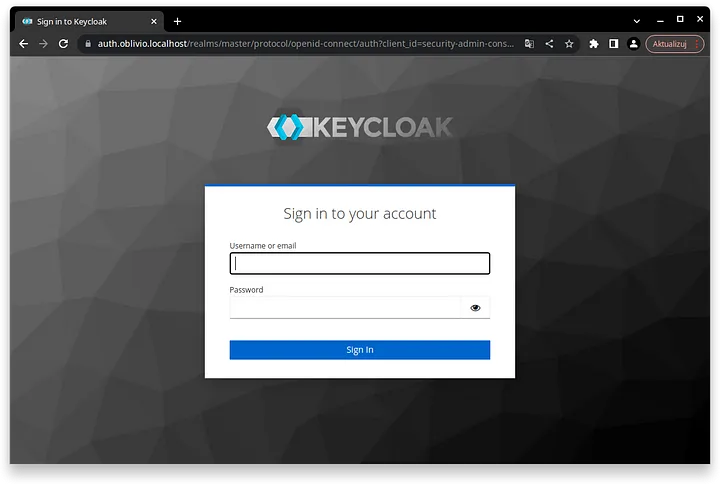
Log in as the default administrator, using the credentials from the Docker environment variables. Check that everything from our YAML file is in place, then create a user to test signing in to CouchDB.
Go to the “Users” tab and click “Add user”. Turn on “Email verified”, fill in the details and join the user to the /couchdb/admins group with “Join Groups”.
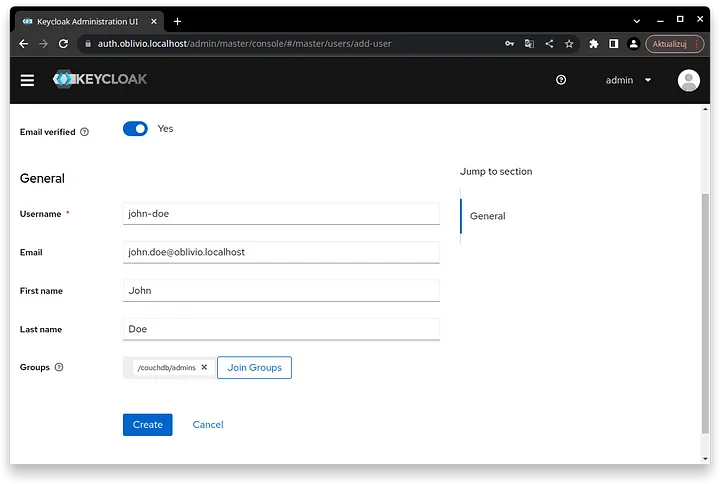
Click “Create” and open the “Credentials” tab. Press “Set password”, choose a password and, for simplicity, turn off “Temporary”.
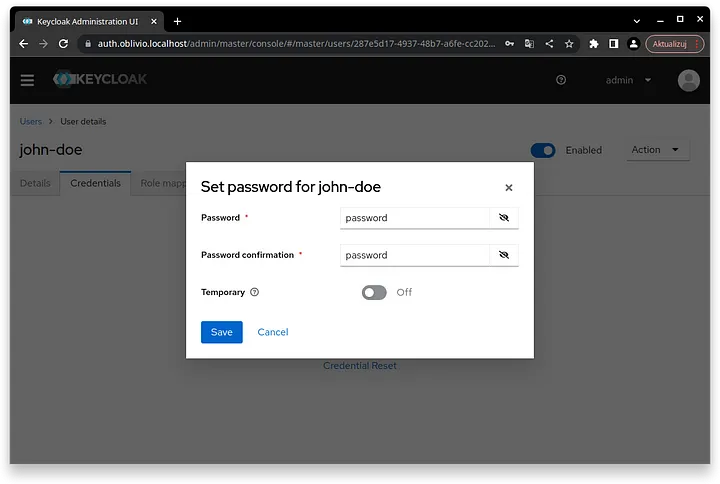
The user is ready. Open a private browser tab and go to https://couchdb.oblivio.localhost. As you aren’t authenticated yet, you will be redirected to https://auth.oblivio.localhost to enter the credentials you just set.
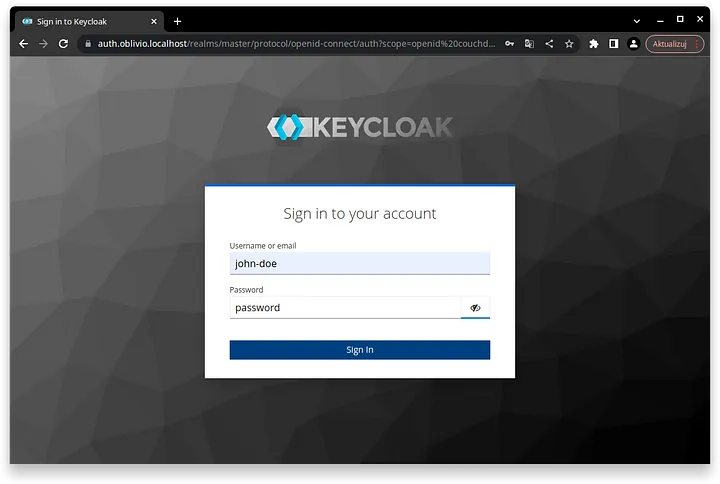
After “Sign In” you land on CouchDB’s welcome page — a JSON document with basic instance information. From there you can open /_session to see the authenticated user, or /_utils for Fauxton, CouchDB’s admin UI. /_session returns JSON similar to this:
{
  "ok": true,
  "userCtx": {
    "name": "287e5d17-4937-48b7-a6fe-cc2029c1cf68",
    "roles": ["_admin"]
  },
  "info": {
    "authentication_handlers": ["proxy", "jwt", "cookie", "default"],
    "authenticated": "jwt"
  }
}
You are authenticated as the user with the given UUID — the identifier Keycloak assigned to them — with the _admin role. Join the other group and you’ll see _user instead. At the end are the available authentication handlers and the one used for this request.
Summary
By combining Keycloak, Nginx, Lua and a handful of configuration files, we can access CouchDB with Single Sign-On without managing users in the database itself. It was a long road, but the result is a clean, extensible setup ready to be hardened for production.

